> ## Documentation Index
> Fetch the complete documentation index at: https://docs.easyuse.yolain.com/llms.txt
> Use this file to discover all available pages before exploring further.
# 🥳 Thanks for using ComfyUI-Easy-Use
> An efficiency custom nodes package
 [ComfyUI-Easy-Use](https://github.com/yolain/comfyui-easy-use) is an efficiency custom nodes integration package, which is extended on the basis of [TinyTerraNodes](https://github.com/TinyTerra/ComfyUI_tinyterraNodes). It has been integrated and optimized for many popular awesome custom nodes to achieve the purpose of faster and more convenient use of ComfyUI. While ensuring the degree of freedom, it restores the ultimate smooth image production experience that belongs to Stable Diffusion.
Learn how to install ComfyUI-Easy-Use
Some hotkeys to make your workflow
Swap same category of nodes
Learn more about the nodes
## 🧐 What's different about easy pipeline and native flow?
The pipeline here is different from the diffusers pipeline. easyuse's pipeline is just an integration optimisation of the native nodes, using the same comfy native architecture.
### 1️⃣ Text To Image
You need 7 nodes to implemente it.
```mermaid theme={null}
flowchart LR
CKPT[Load Checkpoint] -- clip --> TE[Clip Text Encode] -- conditioning --> Ksampler
CKPT[Load Checkpoint] -- clip --> TE2[Clip Text Encode] -- conditioning --> Ksampler
CKPT[Load Checkpoint] -- model --> Ksampler
CKPT[Load Checkpoint] -- vae --> VD[VAE Decode]
EmptyLatent[Empty Latent] -- latent --> Ksampler
Ksampler -- latent --> VD[VAE Decode]
VD[VAE Decode] -- images --> Preview
```
You only need 2\~3 nodes to implemente it.
[ComfyUI-Easy-Use](https://github.com/yolain/comfyui-easy-use) is an efficiency custom nodes integration package, which is extended on the basis of [TinyTerraNodes](https://github.com/TinyTerra/ComfyUI_tinyterraNodes). It has been integrated and optimized for many popular awesome custom nodes to achieve the purpose of faster and more convenient use of ComfyUI. While ensuring the degree of freedom, it restores the ultimate smooth image production experience that belongs to Stable Diffusion.
Learn how to install ComfyUI-Easy-Use
Some hotkeys to make your workflow
Swap same category of nodes
Learn more about the nodes
## 🧐 What's different about easy pipeline and native flow?
The pipeline here is different from the diffusers pipeline. easyuse's pipeline is just an integration optimisation of the native nodes, using the same comfy native architecture.
### 1️⃣ Text To Image
You need 7 nodes to implemente it.
```mermaid theme={null}
flowchart LR
CKPT[Load Checkpoint] -- clip --> TE[Clip Text Encode] -- conditioning --> Ksampler
CKPT[Load Checkpoint] -- clip --> TE2[Clip Text Encode] -- conditioning --> Ksampler
CKPT[Load Checkpoint] -- model --> Ksampler
CKPT[Load Checkpoint] -- vae --> VD[VAE Decode]
EmptyLatent[Empty Latent] -- latent --> Ksampler
Ksampler -- latent --> VD[VAE Decode]
VD[VAE Decode] -- images --> Preview
```
You only need 2\~3 nodes to implemente it.
In general,using method2 is more conducive to make workflows.
```mermaid theme={null}
flowchart TB
subgraph Method2
direction LR
EL["EasyLoader (*)"] -- pipe --> EPK["PreSampling"] -- pipe --> EK["Easy KSampler"]
end
subgraph Method1
direction LR
ELF["EasyLoader (Full)"] -- pipe --> EKF["EasyKSampler (Full)"]
end
```
**EasyLoader**: Load the checkpoint model and clip encoding the text and set an empty latent. you also using load lora models and set clip skip in here. [See all loaders nodes](../nodes/loaders)
**PreSampling**: This is a separate node from ksampler, which only does the configuration of the sampling parameters and does not sample. [See all preSampling nodes](../nodes/preSampling)
**EasyKSampler**: Only sampling and vae decoding are performed, and the sampling parameters are passed in from the pre-sampling node, making it easier to observe the denoising process. [See all kSampler nodes](../nodes/kSamplers)
### 2️⃣ Image To Image
```mermaid theme={null}
flowchart LR
CKPT[Load Checkpoint] -- clip --> TE[Clip Text Encode] -- conditioning --> Ksampler
CKPT[Load Checkpoint] -- clip --> TE2[Clip Text Encode] -- conditioning --> Ksampler
CKPT[Load Checkpoint] -- model --> Ksampler
CKPT[Load Checkpoint] -- vae --> VD[VAE Decode]
LM[Load Image] -- vae --> VE[VAE encode] -- latent --> Ksampler
Ksampler -- latent --> VD[VAE Decode]
VD[VAE Decode] -- images --> Preview
```
```mermaid theme={null}
flowchart LR
EL["EasyLoader (*)"] -- pipe --> EPK["PreSampling"] -- pipe --> EK["Easy KSampler"]
LM[Load Image] -- image --> EPK["PreSampling"]
```
pre-sampling converts the pixel image passed in by load-image node into a latent space image.
### 3️⃣ Using with Controlnet
```mermaid theme={null}
flowchart LR
CKPT[Load Checkpoint] -- clip --> TE[Clip Text Encode]
CKPT[Load Checkpoint] -- clip --> TE2[Clip Text Encode]
TE -- conditioning --> CN[Apply ControlNet] -- conditioning --> Ksampler
TE2 -- conditioning --> CN[Apply ControlNet]
EmptyLatent[Empty Latent] -- latent --> Ksampler
CNL[ControlNet Loader] -- controlnet --> CN[Apply ControlNet]
LM[Load Image] -- image --> PE[PreProcessing] -- image --> CN[Apply ControlNet]
CKPT[Load Checkpoint] -- model --> Ksampler
CKPT[Load Checkpoint] -- vae --> VD[VAE Decode]
Ksampler -- latent --> VD[VAE Decode]
VD[VAE Decode] -- images --> Preview
```
```mermaid theme={null}
flowchart LR
subgraph Method3
direction LR
LM3[Load Image] -- image --> PE3[PreProcessing] -- image --> EC3[ControlNetStack] -- cnet_stack --> ACN["ApplyControlNetStack"]
EL3["EasyLoader (*)"] -- pipe --> ACN["ApplyControlNetStack"] -- pipe --> EPK3["PreSampling"] -- pipe --> EK3["Easy KSampler"]
end
subgraph Method2
direction LR
LM[Load Image] -- image --> PE[PreProcessing] -- image --> EC[ControlNetStack] -- optional_controlnet --> EL["EasyLoader (*)"]
EL["EasyLoader (*)"] -- pipe --> EPK["PreSampling"] -- pipe --> EK["Easy KSampler"]
end
subgraph Method1
direction LR
LM2[Load Image] -- image --> PE2[PreProcessing] -- image --> EC2["Easy ControlNet"]
EL2["EasyLoader (*)"] -- pipe --> EC2["Easy ControlNet"] -- pipe --> EPK2["PreSampling"] -- pipe --> EK2["Easy KSampler"]
end
```
## 🧐How to unpacking pipe and combining pipe?
### Combining into a pipe
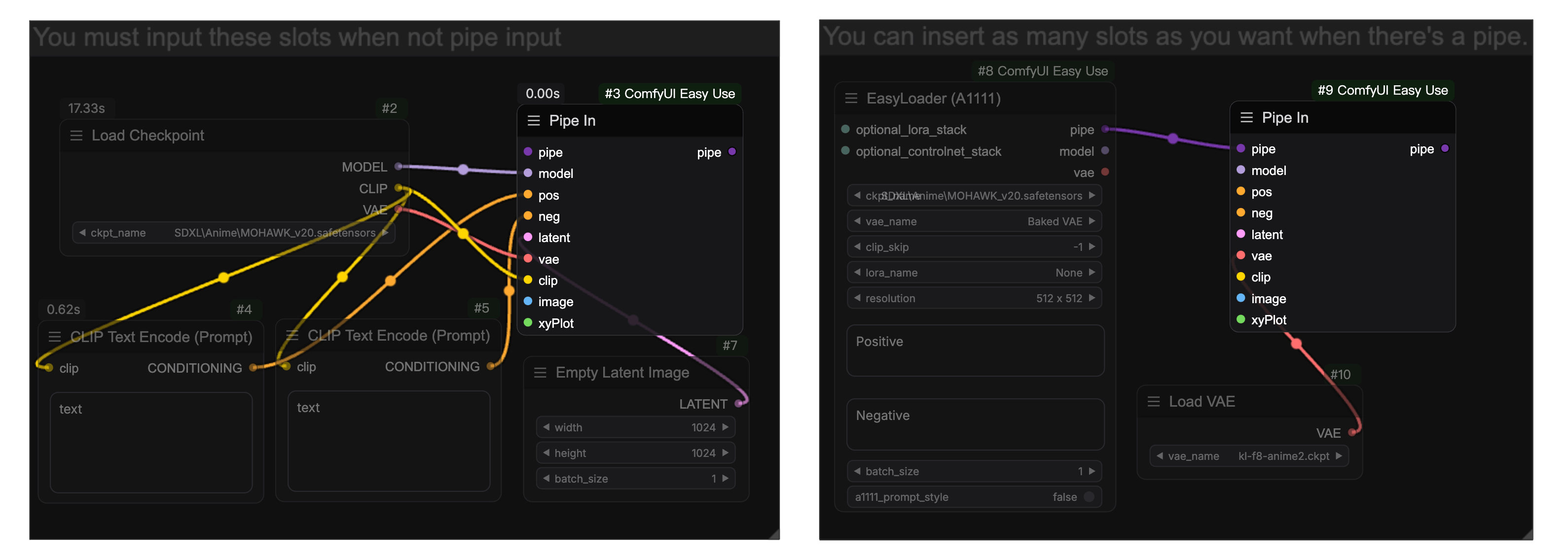
You can use the `easy pipeIn` to merge some regular types into a pipe
 ### Unpacking from a pipe
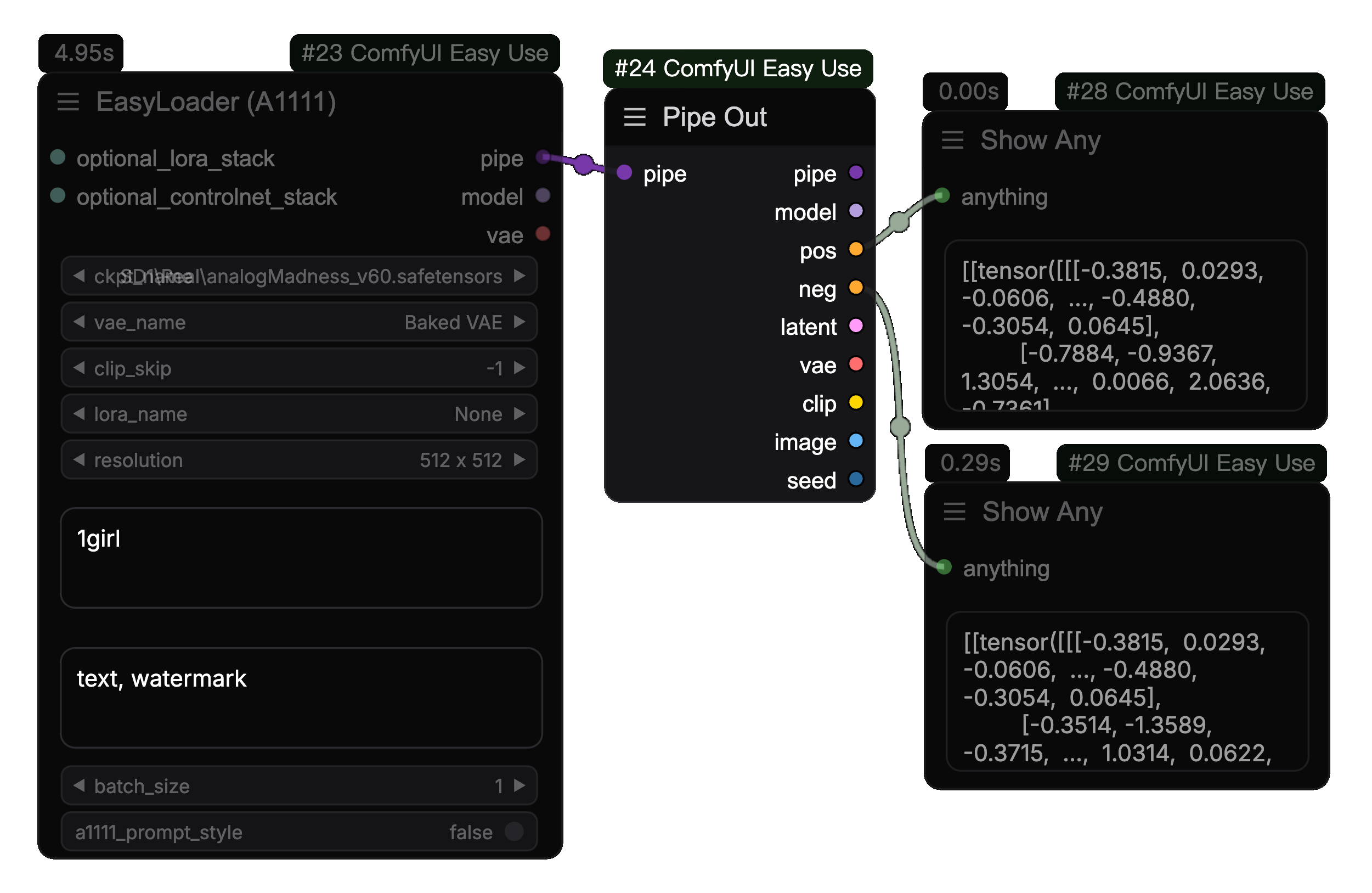
Use the `easy pipeOut` to output some of the regular types of output
### Unpacking from a pipe
Use the `easy pipeOut` to output some of the regular types of output
 ### Modify the pipe
Use the `easy pipeEdit` or `easy pipeEditPrompt` to modify the pipe
### Modify the pipe
Use the `easy pipeEdit` or `easy pipeEditPrompt` to modify the pipe
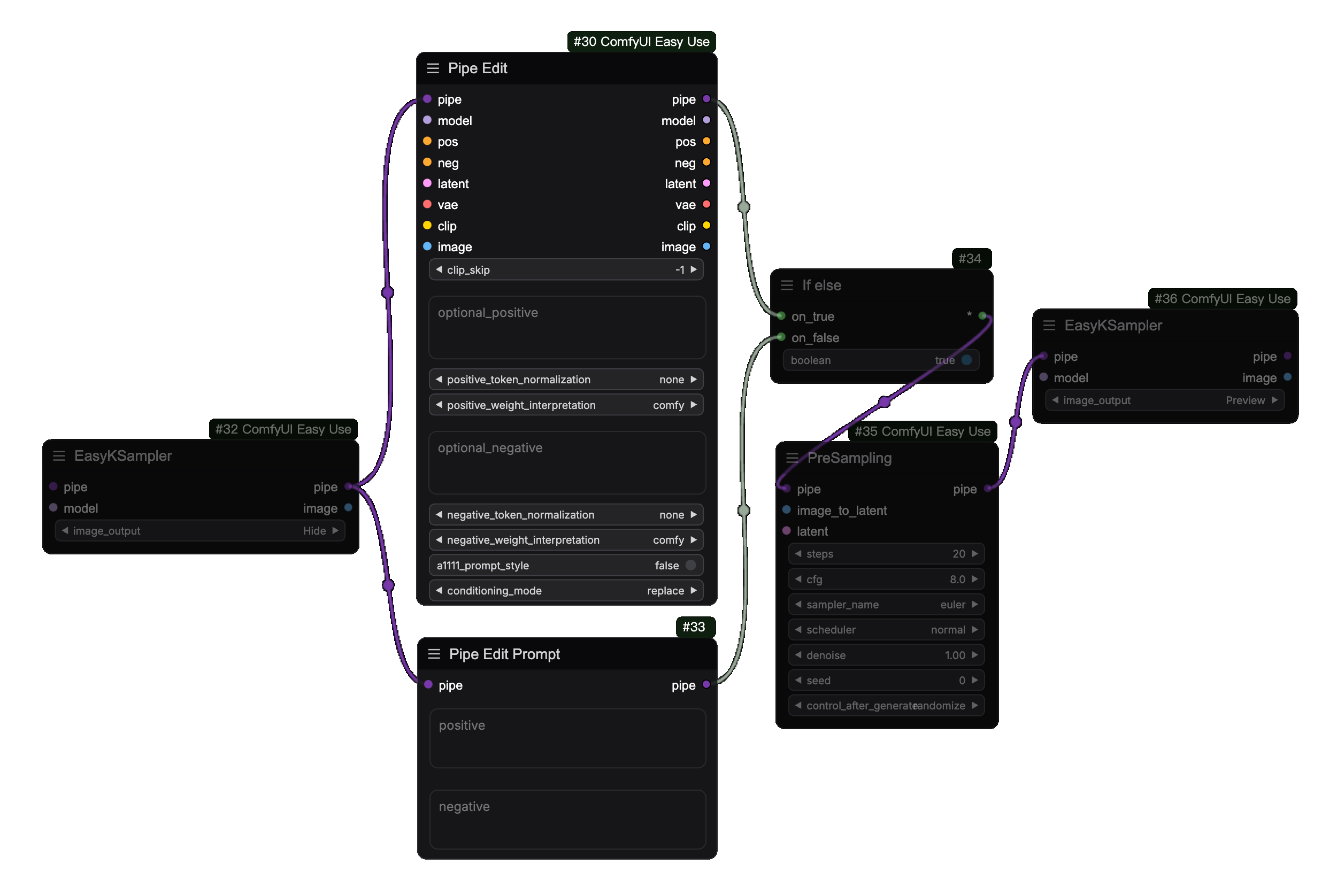 Typically, it is used to preserve some of the parameters after the first diffusion. For the second diffusion we only need to modify some parameters and change the pre-sampling parameters.